
At home we have two Foscam cameras that we use to monitor our property and living room in case we're away.
Currently, we've either been saving the streams to janky SD-cards or not at all. This meant that whenever something happened that was worth rewatching, we were generally unsuccessful in recovering those recordings.
Foscam has their own cloud service that can save streams, but that's paid, and honestly, it's bad enough we use a sketchy brand like that, so using their cloud feature would be even worse.
So now that I've set up a home server, I decided to start saving the streams on there. Here's what I did:
The setup
You can check out my home server setup here But in short: It runs on Ubuntu server which I ssh into from my Macbook.
These are the two Foscam camera models:
FI9816P V3 (Living room camera)
MDS2031 (Outside camera)
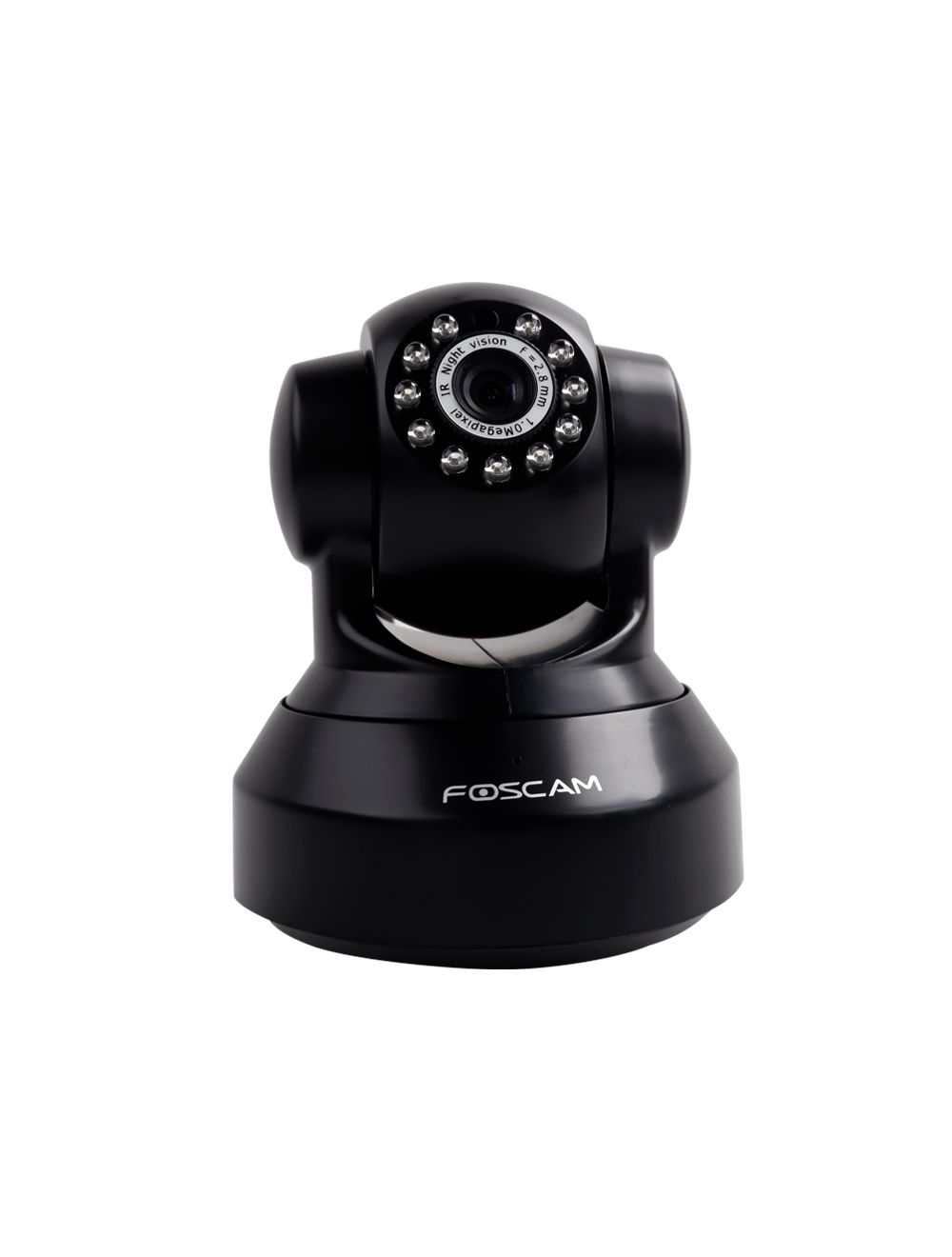
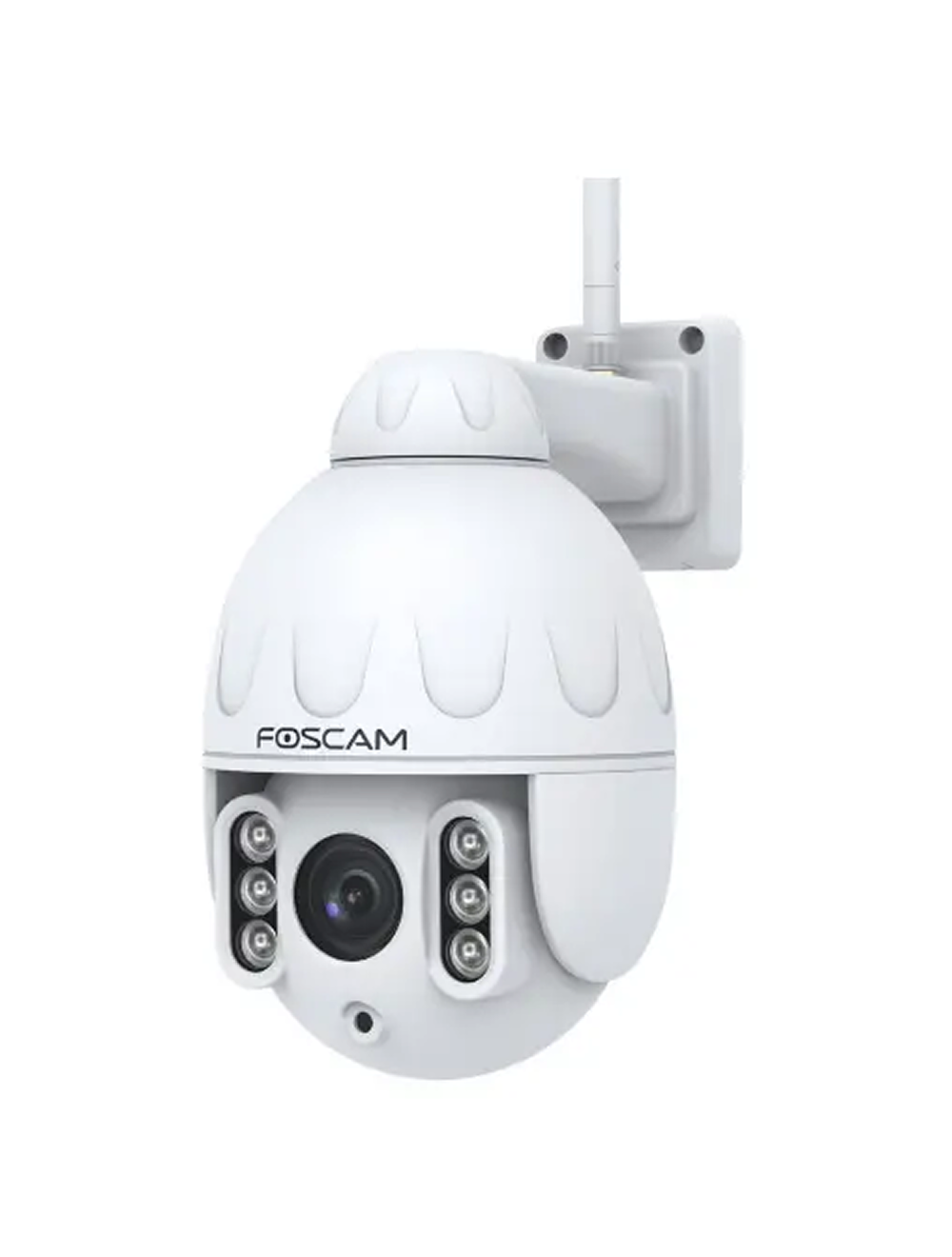
(source: Foscam)
In this post I'll mainly focus on the Outside (Garage) camera since adding the other camera is mainly duplicate work.
A minor hiccup
The camera we use outside is in a bit of a different network situation. Our main router is in our home, to which the router in our garage is connected, to which the camera is connected. This meant I had to do some port forwarding which is too specific to write about here.
Getting the RTSP stream
I was able to get the IP address of the camera through Foscam's software 'Foscam VMS', which we currently use to view the stream. In there, I was also able to turn on and obtain the RTSP stream which I could in turn open with apps such as VLC media player to test.

The structure of the RTSP stream looks something like this: rtsp://username:password@IP_ADDRESS:PORT/videoMain
The username and password were like I had set them up during installation. then the IP address of the camera and the RTSP port, and videoMain to get the high quality main stream. (there is also a sub stream called videoSub which uses a lower resolution and bitrate to save bandwidth)
Using FFMPEG to record, segment and save the stream
I wanted to save the stream to my home server in segments for ease of use. For this, I used FFMPEG.
FFMPEG is an open-source tool used to record, convert, and stream audio and video. This is the command I used to get everything converted and segmented properly:
ffmpeg -rtsp_transport tcp -i rtsp://username:password@IP_ADDRESS:PORT/videoMain \
  -c:v copy -map 0:v -f segment -segment_time 900 -reset_timestamps 1 \
-strftime 1 /home/user/foscam/recordings/garage_%Y-%m-%d_%H-%M-%S.mp4ffmpeg: Calls the tool.-rtsp_transport tcp: Specifies the transport protocol to use for RTSP streams. TCP is more reliable incase of unstable internet connections.-i rtsp://username:password@IP_ADDRESS:PORT/videoMain: Specifies the input as the RTSP stream from our camera.-c:v copy: Copy the input stream directly without re-encoding to avoid quality loss.-map 0:v: Select only the video stream. Of which 0 means the first/only input, and v stands for video.-f segment: Activates FFMPEG's segment function.-segment_time 900: Sets the length of the segments to 900 seconds AKA 15 minutes.-reset_timestamps 1: Resets timestamps for each segment.strftime 1: Enables time-formatting codes in the output filename.
Automatically run FFMPEG using systemd service
I wanted the FFMPEG command to run automatically and continuously. To do that, I created a systemd service.
I created a new file: /etc/systemd/system/ffmpeg-cam.service with the following content:
[Unit]
Description=FFmpeg Garage Camera Recorder
After=network-online.target

[Service]
Type=simple
Restart=always
RestartSec=5
TimeoutStopSec=10
User=root
ExecStart=/usr/bin/ffmpeg -i rtsp://username:password@IP_ADDRESS:PORT/videoMain -c:v copy -map 0:v -f segment -segment_time 900 -reset_timestamps 1 -strftime 1 /home/user/foscam/recordings/garage_%%Y-%%m-%%d_%%H-%%M-%%S.mp4


[Install]
WantedBy=multi-user.target
The [unit] section provides a description and dependency. The dependency (After=network-online.target) makes sure the service only starts once the network is online, which is needed for the camera stream.
The [service] section sets the main behavior:
Type=simpleSets the service as a simple process. Instead ofsimpleyou can opt forexecbut I had trouble understanding the exact difference.Restart=alwaysSutomatically restarts the service if it exits or crashes.RestartSec=5Waits 5 seconds before trying to restart.TimeoutStopSec=10`Waits 10 seconds for the service to stop, if it doesn't, it forces a stop.User=rootRuns the progress as the root user, which is useful for certain access rights.ExecStartRuns the FFMPEG command.
Then there's the [install] section that defines when the service should be enabled. In this case, with After=[network-online.target] means the service starts when the system reaches 'multi-user mode' which is the default state for non-GUI servers. Apparently.
After saving the file, I could simply restart, enable, and start the new service like so:
sudo systemctl daemon-reload
sudo systemctl enable ffmpeg-cam.service
sudo systemctl start ffmpeg-cam.service
And it's running!
In case you're running into issues or want to check if it works, you can use these commands to debug:
sudo systemctl status ffmpeg-cam.service
journalctl -u ffmpeg-cam.service -f
Auto-purging the recordings folder
After running the service, the mp4 files started showing up in my /recordings folder.

I wanted to limit the amount of space the recordings would take and automatically remove the oldest files to make space for newer ones.
In the /foscam folder I created a file called purge_recordings.sh with the following content:
#!/usr/bin/env bash

# Set your target folder and limit (20GB in bytes)
PATH_TO_CLEAN="/home/user/foscam/recordings"
SIZE_LIMIT=20000000000  # 20GB

while true; do
  FOLDER_SIZE=$(du -sb "$PATH_TO_CLEAN" | cut -f1)
  if [ "$FOLDER_SIZE" -gt "$SIZE_LIMIT" ]; then
    # Delete the oldest file
    OLDEST_FILE=$(find "$PATH_TO_CLEAN" -type f -printf '%T+ %p\n' | sort | head -n 1 | cut -d' ' -f 2-)
    [ -n "$OLDEST_FILE" ] && rm -f "$OLDEST_FILE"
  else
    break
  fi
done

echo "purge_recordings.sh finished successfully at $(date)"
#!/usr/bin/env bash: ensures the script runs with Bash. This is to support Bash based features.PATH_TO_CLEAN: Sets the folder we want to purge.SIZE LIMIT: Sets the size limit for the folder, in this case 20GB.while true; do: Creates an infinite loop that only runs when the folder size is larger than the limitFOLDER_SIZE=$(du -sb "$PATH_TO_CLEAN" | cut -f1): Checks the folder size usingdu -sb.if [ "$FOLDER_SIZE" -gt "$SIZE_LIMIT" ]; then: If the folder size is greater than the size limit, then...OLDEST_FILE=$(find "$PATH_TO_CLEAN" -type f -printf '%T+ %p\n' | sort | head -n 1 | cut -d' ' -f 2-): Finds the oldest files.[ -n "$OLDEST_FILE" ] && rm -f "$OLDEST_FILE": Deletes the oldest file.
So with this file I basically say, once the folder is larger than 20GB, get the oldest file and remove it until there's enough space again.
I then marked it as an executable:
chmod +x purge_recordings.shAnd added it as a Cron by adding it to the crontab file:
crontab -e0 * * * * /home/user/foscam/purge_recordings.shOf which 0 means the start of each new hour, and the remaining * for every hour, day, month etc.
Viewing the recordings
Initially I set up SMB to view the files through my Finder and mount it. This took some effort, though, and there were differences between how Mac handles those connections and Windows. I did get it working, but I'll spare you the details since there are plenty of tutorials available.
Later on I found out it's pretty easy to view files through Home Assistant, so I did that instead.
in my docker-compose.yml file, under the homeassistant section I added a new volume:
  homeassistant:
    image: ghcr.io/home-assistant/home-assistant:stable
    container_name: homeassistant
    volumes:
      - ...
      - ...
      - /home/user/foscam/recordings:/media/recordings <-- here

    environment:
      - TZ=Europe/Amsterdam
    restart: unless-stopped
    network_mode: host
    privileged: true
The first part: /home/user/foscam/recordings is the true path to the folder, and the second part: /media/recordings is what I'm mounting it to so Home Assistant can see it.
Then I restarted Home Assistant by running docker compose down and docker compose up -d, checked the media tab in the front-end and there the recordings showed up!

Conclusion
And there you have it, a system that records and saves camera streams without having to rely on cloud subscriptions and whatnot.